Monday, June 27, 2011

All Lovers, Careful.. Should Read This Article Please.....


You already know that your cell phone may not be as safe. But please read this because maybe you shouldn’t ignore the warning sirens any longer.

Radiation from cell phones can possibly cause cancer, according to the World Health Organization. The agency now lists mobile phone use in the same "carcinogenic hazard" category as lead, engine exhaust and chloroform.

The type of radiation coming out of a cell phone is called non-ionizing. It is not like an X-ray, but more like a very low-powered microwave oven. "What microwave radiation does in most simplistic terms is similar to what happens to food in microwaves, essentially cooking the brain," Black said. "So in addition to leading to a development of cancer and tumors, there could be a whole host of other effects like cognitive memory function, since the memory temporal lobes are where we hold our cell phones."


"Children's skulls and scalps are thinner. So the radiation can penetrate deeper into the brain of children and young adults. Their cells are at a dividing faster rate, so the impact of radiation can be much larger." said Black of Cedars-Sinai Medical Center.

In February, a study by researchers at the National Institutes of Health, revealed radiation emitted after just 50 minutes on a mobile phone increases the activity in brain cells. The effects of brain activity being artificially stimulated are still unknown.

Now, after a working group of 31 scientists from 14 countries reviewed the latest research data, the IARC ( INTERNATIONAL AGENCY FOR RESEARCH ON CANCER)announced that it has classified radiofrequency electromagnetic fields from cell phones “as possibly carcinogenic to humans based on an increased risk for glioma, a malignant type of brain cancer.“



The Apple iPhone 4 safety manual says users' radiation exposure should not exceed FCC guidelines: "When using iPhone near your body for voice calls or for wireless data transmission over a cellular network, keep iPhone at least 15 millimeters (5/8 inch) away from the body." BlackBerry Bold advises users to "keep the BlackBerry device at least 0.98 inch (25 millimeters) from your body when the BlackBerry device is transmitting."

Finally, cell phones emit the most radiation when they are attempting to connect to cellular towers. A moving phone, or a phone in an area with a weak signal, has to work harder, giving of more radiation. So users can avoid using their cell phones in elevators, buildings and rural areas if they want to reduce their exposure, experts say.


Check your phone now...... And Reduced your talk time


Feel free to drop your comments in the comment box please, and ask your questions here.....eel free to drop your comments in the comment box please, and ask your questions here.....

Tuesday, June 21, 2011

Now I know 63 languages, Do You know?????

now Google introduce Tamil translate....

Try and enjoy.....

Now No need to feel about any language....

try now

Google Translate

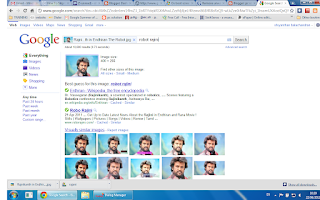
Are you want to find any objects Name or Similar pictures


Do you want similar images?

Do you want to find any person with images?

You don't know the English words of any objects?

what's your problem???

Now Don't worry

Google gave solution to us......


For more details....
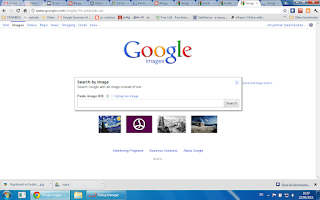
Google Image Search
you can search using voice regnoitation also.... no need to type

try..... more details..

Voice Search

Friday, June 17, 2011

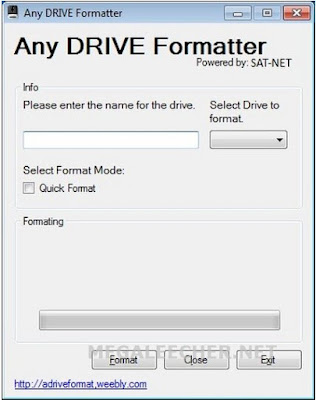
Any Drive Formatter - Now you can freely format your flash and hard drives without errors

Many times you must have faced the “Windows was unable to complete the format” error while trying to format usb disk drives and memory-cards, free windows utility Any Drive Formatter lets you get past this error and format your portable storage media the easy way on Windows 7, Vista, and XP computers.

Download Here.....


Feel free to drop your comments in the comment box please, and ask your questions here.....
Thursday, June 16, 2011

Clean and speedup your computer through using CCleaner


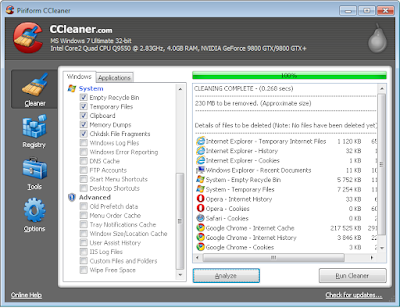
C Cleaner cleans out temporary cache files, log files, fragments left from checks, the clipboard, recycle bin, and some other things. Basically useless files that are eventually deleted anyway, keeping registries cleaner. It won't delete anything important, and it will tell you if you check something for it to clean that you might not want cleaned.Most of the items deleted are pieces of data that your web browser stored during last use.C Cleaner can also resolve registry errors, mainly files left behind during uninstalls. This speeds up your computer because their are less "dead end" files in your registry.No one likes a slow computer, especially when a PC feels sluggish performing regular activities such as Web surfing, opening programs, or even starting up. If your system seems as if it's swimming through molasses, don't buy a new computer just yet.

CCleaner (short for "Crap Cleaner") knows exactly where to find the files that slow down your computer. Get a quick understanding of CCleaner's features, and learn how to properly maintain your system to keep your computer quick and nimble.

Clean your computer - Run the Program and click on the Analyze button and you'll get a summary of what can be cleaned.


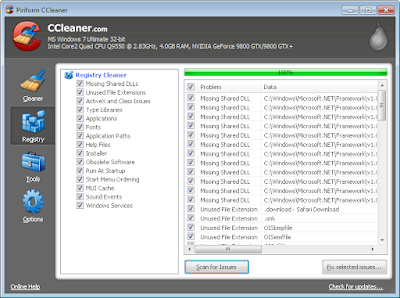
Registry Cleaner - The Registry Cleaner will show you problems it finds and can fix in your registry.(specially clean dead ends)


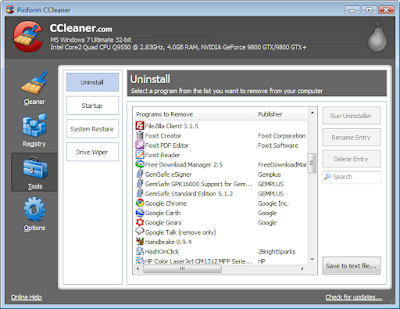
Optimize your PC- The Uninstall Tool will show you all the applications installed on your PC and allow you to uninstall any you no longer use.


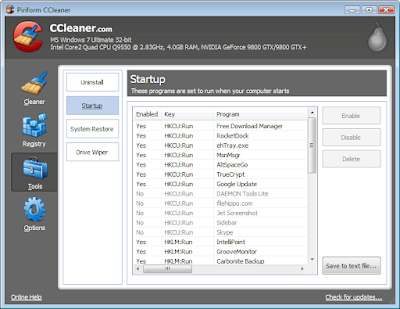
Start up programs - The Startup Tool shows you what programs are run when you turn on your computer. Through this can manage startup programs and your PC can start up quickly.

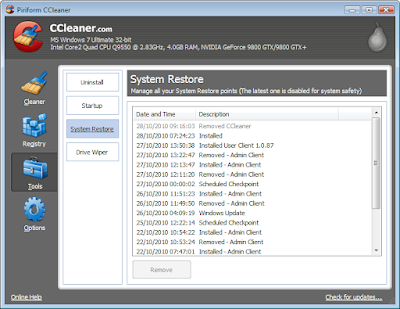
System Restore- The System Restore tool allows you to view and delete any of the System Restore points that Windows creates for your PC. If you have any problem after Registry cleaning, you can restore that files.


Feel free to drop your comments in the comment box please, and ask your questions here.....
Extending the system partition

Follow last article until selecting "disk management"

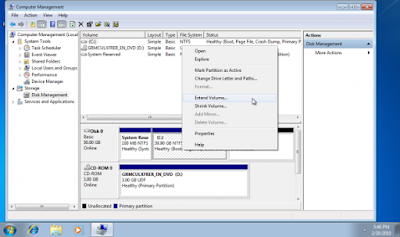
Select the disk you want to extend, for example Drive C. Right-click the disk and select Extend Volume.

Click on "Next"
Windows 7 will tell you how much space can be added to the existing partition. You can manually enter the amount of space you want to add by changing the "Select the amount of space in MB" values. Note that you cannot enter a higher value than the value already present. Click on "Next".


The process will finish quite quickly, and a reboot is NOT required. You can notice the new partition size. Feel free to drop your comments in the comment box please.


Do you want to partition your hard drive after Windows Installation Without formatting..

step by step....

follow these instructions carefully.

First, Log in as Administrator,

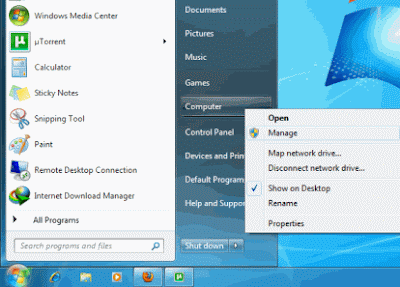
Then, right click on "Computer" and choose "manage"


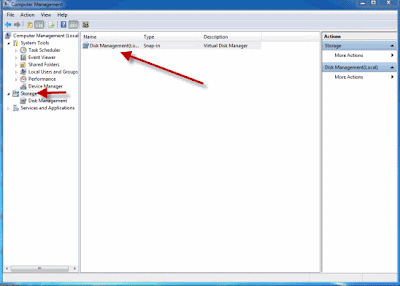
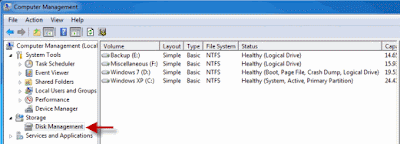
At once a new window will open entitled “Computer Management“. In this new window click on “Storage ” and then go to “ Disk Management “.

The completion of the second step will give you a view of all the drives present in your computer.

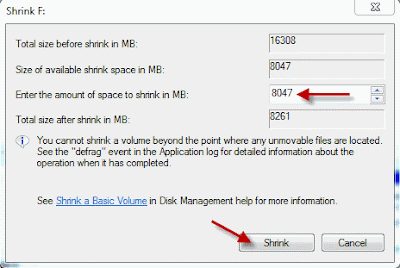
Among these select the one you want to partition. Then right click on the selected drive and navigate to the option ” Shrink Volume.. “.


A new window should open in which the size of the drive before shrink will be mentioned and the available space to shrink will be mentioned , and in the next line you will be asked to enter the amount of space you want to shrink and this will be the size of the new partition.

After entering the values click on the option “ Shrink ” and wait for the process to complete. The time taken for the operation may be long depending upon the size of the disk and the space to be shrunk. Once the operation is completed a window appears showing unallocated space and the value is exactly the one you entered earlier. Select this unallocated space and on right clicking on it click on the option “ New Simple Volume “.

A wizard will open up. Go through the wizard and fill in the values required. Usually the value needed to enter is the same one that you entered as the volume to be shrunk.

The drive newly created needs a letter to be assigned to it. Assign any letter of your choice as it does not make any difference.

A Format page will appear and in it carefully notice that the File System selected is “NTFS ” . After this is done enter a name for your drive and then click on ” Next ” and then “Finish “.

You have reached your goal. You have partitioned your Hard Drive in Windows 7 without formatting your computer and without the use of any software. Feel free to drop your comments in the comment box please.